
Setting up mixed cart limits in Shopify with DC order limits
Mixed Cart Limits let you control which products can (or can't) be purchased together in the same cart. This is also called product combination rules, bundle restrictions, or cart pairing rules. Use this feature to:
- Block incompatible products — prevent certain items from being in the same cart
- Require a main product before add-ons — customers must add Product A before they can add Product B
- Limit add-on quantities — cap how many accessories can be purchased with a main item
Mixed Cart Limits are different from Order Limits (which control quantity/price) and Customer Purchase Limits (which track per-customer history).
💡 Which limit type do you need?
- Quantity/price limits per order → Use Order Limits
- Limits that track each customer over time → Use Customer Purchase Limits
- Rules about which products can be purchased together → You're here (Mixed Cart Limits)
When to use mixed cart limits
Use this feature if you want to:
- Prevent customers from adding incompatible products to the same cart.
- Require a main product before customers can purchase an add-on or restricted item.
- Limit the number of add-ons or restricted items customers can purchase when a qualifying product is in the cart.
Setting up mixed cart limits
To set up mixed cart limits, follow these steps:
1. Access the form
- Go to the Order Limits page.
- Click on "Create rule" and select Mixed Cart Limits.
- Or, click on the title of an existing mixed cart rule (e.g., "Cart combination control") to edit, which will open the form.
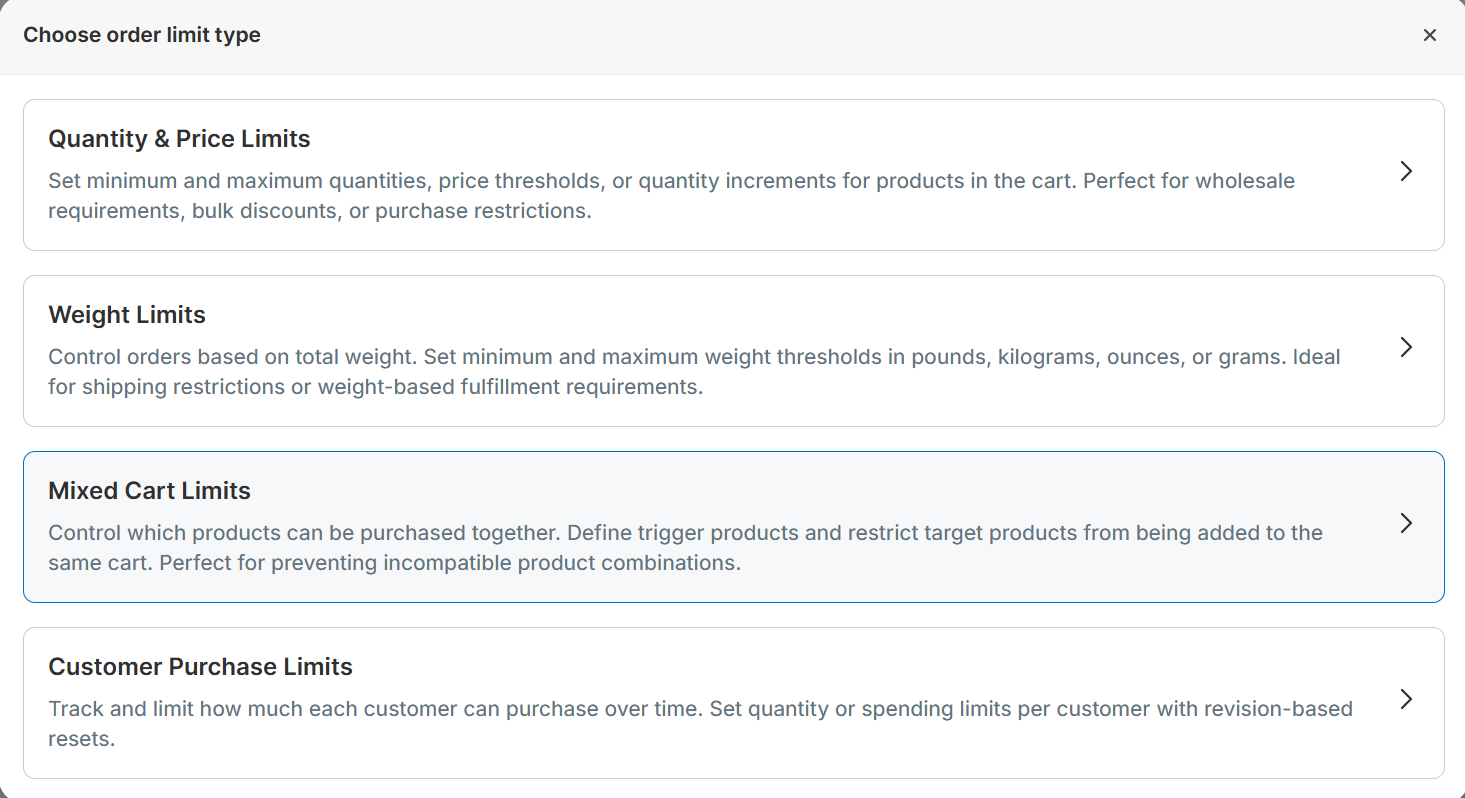
2. Fill out Rule Details
Rule information
- Title: Enter a descriptive name for the rule. This title is used internally to identify the rule.
3. Configure trigger options
- All products: Any product in the cart can activate this mixed cart rule.
- Products with specific tags: Only products with the tag(s) you enter will activate this mixed cart rule.
- Selected products: Only the specific products you list by product ID or title will activate this mixed cart rule.
- Selected product variants: Only the specific variants you list by variant ID or title will activate this mixed cart rule.

4. Configure target options
- All products: All products will be restricted when trigger products are present.
- Products with specific tags: Only products with the tag(s) you enter will be restricted when trigger products are present.
- Selected products: Only the specific products you list by product ID or title will be restricted when trigger products are present.
- Selected product variants: Only the specific variants you list by variant ID or title will be restricted when trigger products are present.

5. Restrictions on the target product
- Block target products: Customers cannot add or keep the target products in the cart while trigger products are present.
- Limit target quantity: When trigger products are present, the target products are allowed but capped at the maximum you enter in "Limit target quantity to".
- Require trigger products: Target products are only allowed when trigger products are in the cart. The "minimum trigger quantity" sets how many trigger items must be present to allow targets.

6. Limit cart grouping
- Across all target items (cart total): The limit is shared across all target products combined, so all target quantities add up toward one cap.
- Per product: The limit is applied separately to each target product, so each product gets its own cap.
- Per product variant: The limit is applied separately to each target variant, so each variant gets its own cap.

7. Define customer eligibility
Choose which customer the rule affects:
- All Customers: Affects every customer.
- Logged Out Customers: Only applies to customers who are not logged in.
- Logged In Customers: Only affects customers who are logged in.
- Customers with Specific Tags: Applies only to customers tagged with specific keywords.
- Selected Customers: Affects individually selected customers

8. Determine market eligibility
Choose which market the rule affects:
- All Markets: Affects all markets.
- Specific market regions: Only applies to specific market regions

9. Save and activate
Click "Save" to apply the settings. Once saved, the rules are live immediately unless you set a future start date.
Once a rule is created, a summary of the rule's settings is displayed on the left side of the form for existing rules. This summary helps you review and confirm the rule's configurations before making further changes.
Related Articles
- Setting up order limits and cart limits in Shopify — Control quantity and price limits per order.
- Setting up customer purchase limits — Track and limit purchases per customer over time.
- Which Limit Type Should I Use? — Quick comparison of all limit types.
- Understanding Product Grouping Options — Learn how Per Product, Per Variant, and Any Item grouping affects your limits.
- Using exclusion rules — Exclude specific products or customers from your rules.