
Customizing and Translating Error Messages in DC Order Limits
DC Order Limits lets you fully customize the error messages customers see when they hit a limit. Whether you want to adjust the wording for your brand voice or translate messages into multiple languages, it all happens in the Locales editor.
- Order Limit Locales — for Quantity and Price limits (cart limits)
- Mixed Cart Limit Locales — for product combination restrictions
- Customer Purchase Limit Locales — for lifetime/per-customer limits
What You Can Customize
Every error message in DC Order Limits can be edited. Common examples include:
- "You can only purchase {max_quantity} of this item"
- "Minimum order of {min_quantity} required"
- "Cart total cannot exceed {max_price}"
You can change the tone, wording, and structure to match your brand. Keep the variables (the parts in {curly brackets}) intact.
Customizing Order Limit Messages
Use this section for Quantity and Price limits (also called cart limits). These are the rules that restrict what customers can add to a single cart.
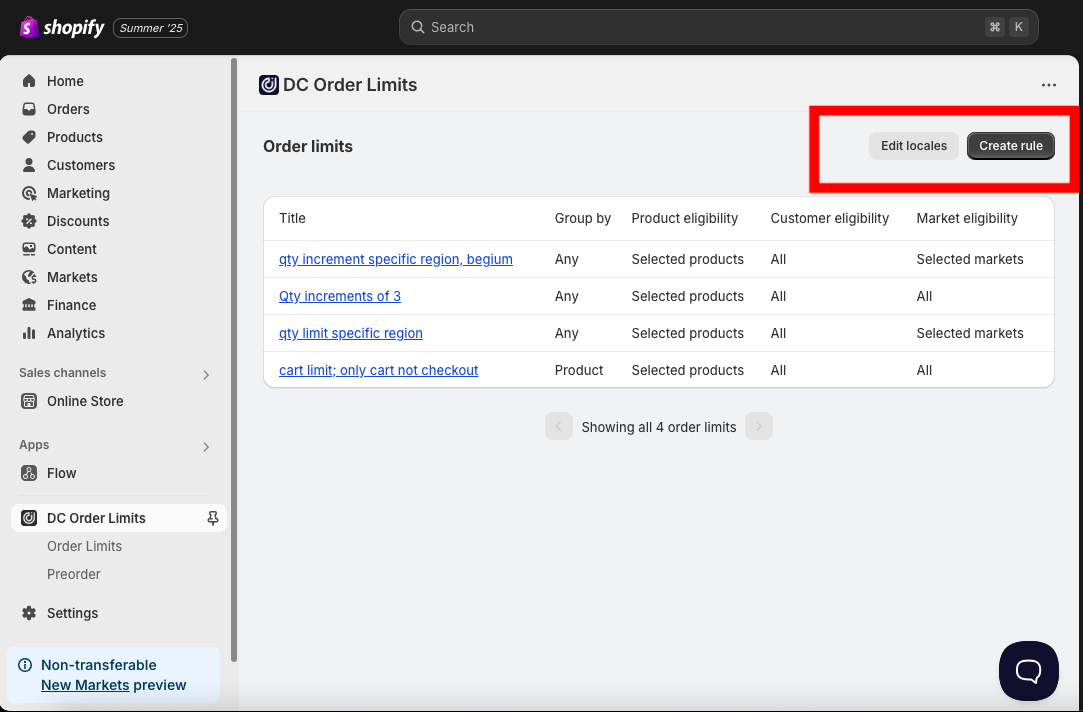
Step 1: Open the Locales Editor
- From your Shopify admin, open DC Order Limits
- Click Order Limits in the sidebar
- Click the Edit locales button (next to "Create rule")
- Select Order Limit Locales
Step 2: Edit Your Default Messages
Select your default language from the dropdown. This is where you customize your primary error messages.
Edit any message to match your brand voice. For example:
| Default | Customized |
|---|---|
| "Maximum of {max_quantity} allowed" | "Limit {max_quantity} per customer — thanks for understanding!" |
| "Minimum quantity is {min_quantity}" | "This item ships in packs of {min_quantity}" |
Step 3: Understand Variables
Variables are placeholders that automatically fill in with the right values. Do not translate or rename them.
| Variable | What It Shows |
|---|---|
{min_quantity} |
Minimum quantity allowed |
{max_quantity} |
Maximum quantity allowed |
{current_quantity} |
How many the customer has in cart |
{min_price} |
Minimum order/cart value |
{max_price} |
Maximum order/cart value |
{current_price} |
Current cart total |
Correct: "You need at least {min_quantity} items"
Incorrect: "You need at least {minimum_qty} items" — variable will not work
Customizing Customer Purchase Limit Messages
Use this section for Customer Purchase Limits (also called lifetime limits or once-per-customer limits). These are the rules that track purchases across all of a customer's orders.
Step 1: Open the Customer Purchase Limit Locales Editor
- From your Shopify admin, open DC Order Limits
- Click Order Limits in the sidebar
- Click Edit locales at the top of the rules page
- Select Customer Purchase Limit Locales
Step 2: Edit Your Customer Purchase Limit Messages
Edit the messages customers see when they have reached their lifetime purchase limit. For example:
| Default | Customized |
|---|---|
| "Purchase limit: You can purchase up to {max_quantity} items. You've purchased {purchased_quantity}, with {remaining_quantity} remaining." | "This item is limited to {max_quantity} per customer. You have already purchased {purchased_quantity}." |
Customer Purchase Limit Variables
Customer Purchase Limits use different variables than standard Order Limits:
| Variable | What It Shows |
|---|---|
{max_quantity} |
Maximum quantity the customer can ever purchase |
{purchased_quantity} |
How many the customer has already purchased (across all orders) |
{remaining_quantity} |
How many the customer can still purchase |
{cart_quantity} |
How many are currently in the cart |
Customizing Mixed Cart Limit Messages
Mixed Cart Limits have their own locales section. This is where you customize messages that appear when customers add conflicting product combinations to their cart.
Step 1: Open the Mixed Cart Limit Locales Editor
- From your Shopify admin, open DC Order Limits
- Click Order Limits in the sidebar
- Click Edit locales at the top of the rules page
- Select Mixed Cart Limit Locales
Tip: You can also access Mixed Cart Limit messages by clicking Edit locales from within a Mixed Cart Limit rule configuration.
Step 2: Edit Your Mixed Cart Messages
Edit the messages customers see when they try to add products that cannot be purchased together. For example:
| Default | Customized |
|---|---|
| "{trigger_title} cannot be purchased with {target_title}" | "Heads up! {trigger_title} ships separately from {target_title}. Please place separate orders." |
Mixed Cart Limit Variables
Mixed Cart Limits use different variables than standard Order Limits:
| Variable | What It Shows |
|---|---|
{trigger_title} |
The product that triggered the conflict |
{target_title} |
The conflicting product already in the cart |
Keep these variables in your message so customers know exactly which products are affected.
Adding Translations for Other Languages
If your store serves customers in multiple languages, you can add translations for each language you support.
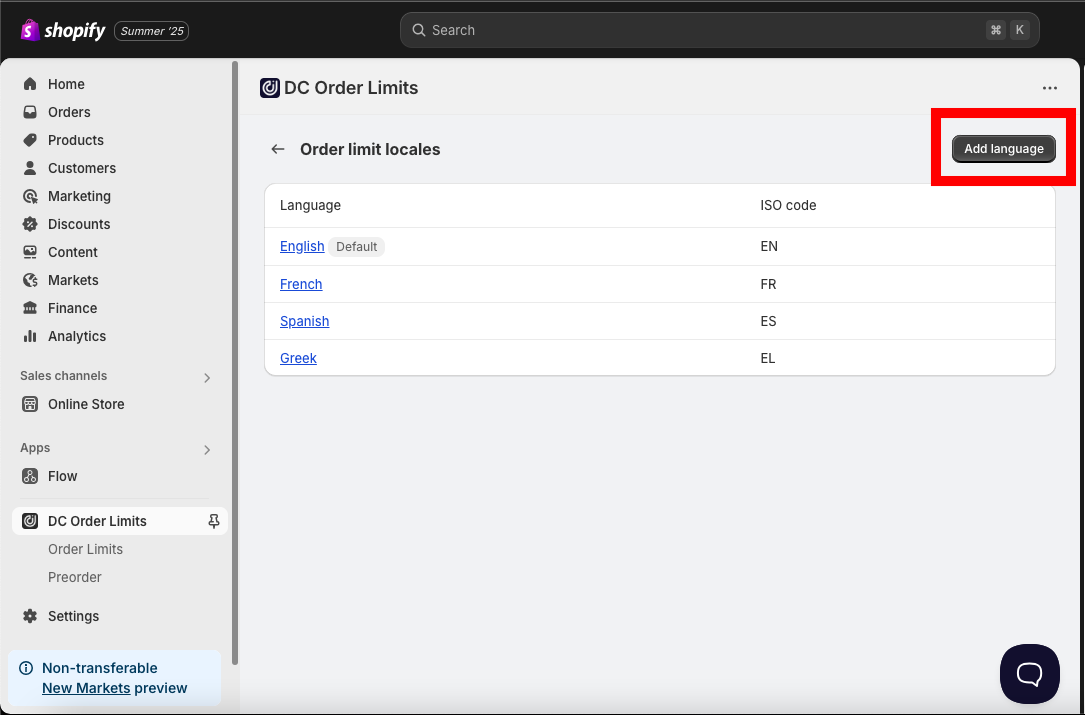
Step 1: Add a New Language
- In the Locales editor, click Add language
- Select the language from the dropdown
- The app will show all error messages with empty fields for your translations
Step 2: Translate Each Message
Write your translated messages, keeping the variables unchanged:
English: "Maximum of {max_quantity} allowed per order"
French: "Maximum de {max_quantity} autorise par commande"
Spanish: "Maximo de {max_quantity} permitido por pedido"
How Language Detection Works
DC Order Limits automatically displays the correct language based on:
- The customer's browser language settings
- Your Shopify store's language settings
You do not need to create separate limit rules for each language.
Frequently Asked Questions
I cannot find my message in the locales editor
Make sure you are looking in the correct locales section:
- Order Limit Locales — for Quantity and Price limit messages
- Customer Purchase Limit Locales — for lifetime limit messages (these show purchase history like "You have purchased X")
- Mixed Cart Limit Locales — for product combination restriction messages
If your message mentions how many items a customer has already purchased, look in Customer Purchase Limit Locales, not Order Limit Locales.
Do I need separate rules for different languages?
No. Create your limit rules once, then add translations in the Locales editor. The app automatically shows the right language to each customer.
What is the difference between Localization and Shopify Markets?
- Localization (this feature) controls the language of your error messages
- Shopify Markets controls geographic targeting — which countries can access your store and pricing
If you need different limit amounts for different regions (for example, max 5 in US, max 10 in EU), create separate rules with targeting conditions. For different languages with the same limits, add translations here.
My messages are not showing at all. What is wrong?
If customers are being blocked but do not see any error message, you may need to configure where messages display. See: Setting up error messages for DC Order Limits
Related Articles
- Setting up error messages for DC Order Limits on the Shopify store — Configure where messages appear
- Setting up order limits and cart limits in Shopify — Create your first limit rules
- Setting Up Lifetime / Once-Per-Customer Limits — Create customer purchase limit rules
- Troubleshooting: Why my order limits are not working — Fix common issues